Once you have selected your required audience for a campaign, you may want to split your audience into groups or test which type of communication will generate the best results.
Decision steps are associated with the color amber, both in the menu and on the workspace.
Note: to remove a step from a campaign, select the red X icon in the corner of the step.
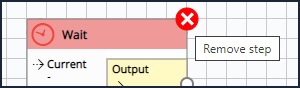
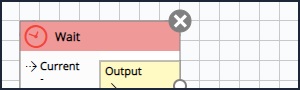
If the icon is grayed out, there is campaign history associated with the step that is preventing the step from being deleted.
There are several ways to split your audience into groups.
-
Yes No Split divides the audience based on a simple yes or no characteristic.
-
Field Split separates the audience based on two or more characteristics, such as location, occupation, etc.
-
Volume Split is used when you want to divide up the audience into groups with a specific number in each one, or with a percentage of the whole.
-
Query Split divides the audience based on the result of a query. This allows you to make two or more groups based on decisions that are more complex than the Yes no split.
-
Dynamic Split selects a set of audience members based on a characteristic such as a score or ranking, passes that group to one action step, and then passes the remaining audience members to a different action.
If you plan to send multiple communications you can use a multi-variant A/B test to test for the most successful creative based on responses.
Note: if you are building a simple campaign that sends the same communication to all members of the audience, you do not need to use a decision step.
Yes No Split
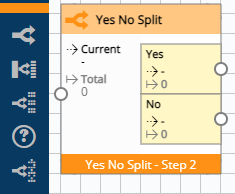
The Yes No Split Step lets you branch the Campaign flow based on whether records do or do not match Selection criteria.
Once a Step has been placed on the Workspace it can be renamed (optional) and populated with a Selection, e.g. with this Yes No Split Step, individuals who drive a Ford will go down the Yes branch and everyone else will go down No.

Field Splits
The Field Split Step lets you branch the Campaign flow into multiple streams based on the values contained in the chosen field. For example, with this Field Split step, individuals working in Retail would follow a different path to those working in Marketing.

The Step can be named (optional) and it is automatically populated with the values in the chosen field.

If you don't want to use all the values you can remove them by clicking the X. If you then decide that you did want that value, click the Add button to bring it back in. Any records that are excluded by having a Field Value deselected will go into the Remainder branch.
Volume Splits
The Volume Split Step lets you split the Campaign flow into a number of streams based on numeric criteria, e.g. in this Campaign, the Audience is split into 3, approximately equal, groups allowing you to test the effectiveness of 3 different communications.

There are a number of Options for Numeric Split:
-
One in N - Selects every Nth record so, for example, a sample of 10 here would give a 10% selection of the segment.
-
Fixed - Returns a fixed value according to the settings, e.g. selecting 25 and Percent would return 25% of the segment selected at random.
-
Optional Maximum Limit - Set a maximum number of records for one or all segments, e.g. if you have Campaign that returns 256, 545 and 2,413 records per segment you could use this function to limit each segment to 250 records to give a better balance.
Query Splits
The Query Split is similar to the Yes No Split, but may contain more than one query.

To add queries to a Query Split, highlight the Step then in the properties window click the Add button.

Change the name of the new split (optional) and add the query criteria.
Dynamic Splits
The Dynamic Split node works similarly to a Query split, where you will select one set of data based on your data, then split the remainder of your data elsewhere.

Source Types
-
Model - Using R Logic's modeling module, the dynamic split module will score and rank contacts based on their Model's score. Anyone who fits into the assigned ranking/criteria will be passed through the Output, whilst all others are passed into the "remainder". This scoring is based on the below Source Score criteria.
Note: This is the only Dynamic split Source which uses the "Remove records that already match" Function. When ticked, any Individuals passed through the split who were included in the original model criteria won't be included in the Output.
-
External Data - With BlueVenn's new External Data feature, any contacts who link and match to the external data will be passed through the Output.
-
Nurture Scoring - Using BlueVenn's new Nurture Scoring, anyone whose Nurture score fits in with the below Source Score criteria will be passed through the Output channel.
Source Score Criteria
The "Take Type" gives you a number of options for splitting this data. These values will be based on either your Nurture or Model Scores.
-
Take First - Using an Integer, this will select N amount of individuals, ordered Descending with the highest value first.
-
Take Last - Using an Integer, this will select N amount of individuals, ordered ascending with the lowest value first.
-
Take Over - Will select all individuals who have a value higher than N
-
Take Under - Will select all individuals who have a value lower than N
-
Take Equal - Will select all individuals who have a value equal to N
-
Take Not Equal - Will select all individuals who have a value which is not equal to N
Note: The "Remove records that already match criteria" option will be greyed out for Nurture Scores and External Data, as this only applies to Source Types of "Model" when using the Modelling nodes.
In the below example, we have taken our full marketable database, then used the Dynamic Split to split everyone with an engagement score of 150 or higher, and pushed these through to a special offer campaign, whilst the remainder receive the monthly newsletter.

Of the 498k marketable individuals in the system, 74.4k have an engagement score of 150 or higher, based on their previous interactions within our campaigns.
The remaining 421k individuals are pushed through to the regular newsletter, once these have been split.
Multi-Variant A/B Testing
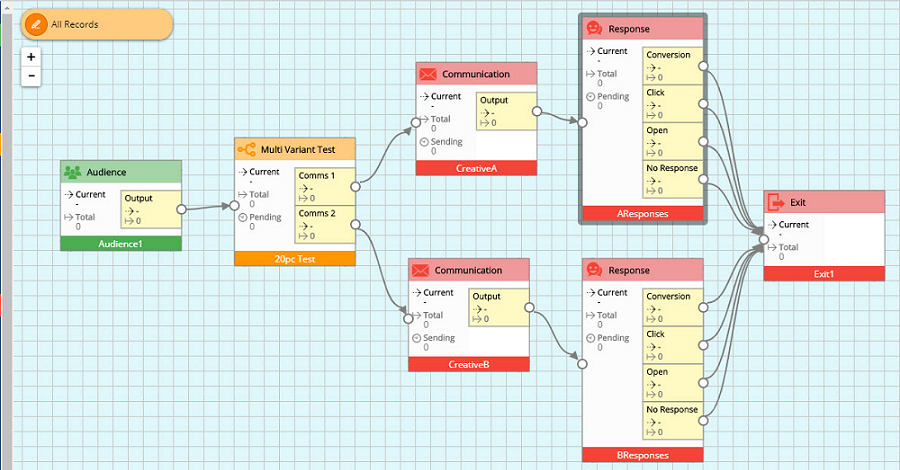
This feature allows a campaign to incorporate a number of creatives to be used within a campaign for testing for the most successful creative based on responses. The step can accept multiple communication variants, e.g. different subject lines, creative images, etc. to determine which is the strongest performer based on responses from a sample test group.
The multi-variant test step is added into the campaign between the incoming audience and/or decision steps and the communication steps.
-
Add a new multi-variant step to the campaign.
-
Under test configuration, use the add button to add tests nodes as required.
-
Rename your nodes by double-clicking in the highlighted box.
-
Define a test size to indicate the number of records to be used to sample from the incoming audience. These records will be split equally across the number of test nodes entered.
-
Set a response type for all communications added, e.g. open, click, or conversion.
-
Add a waiting period to specify the time period to use when evaluating the strongest communication option according to the response test used.
For the multi-variant step to work, the response steps need to have already been run and moved the records onto the event nodes prior to the multi-variant step making its decision. This can be achieved by setting up the campaign in the following way:
-
Set the response steps with the most specific / valuable responses first in order and with shorter wait times, e.g. node 1 with wait =1n, node 2 with wait = 2n, node 3 with wait=3n, etc.
-
Set the multivariant step wait time to be longer than the response nodes being measured, e.g. if your longest response node wait time is six hours, set the multivariant step wait time to 8 hours.
-
-
Run the campaign at least 3 times.
-
The first run will send out the test sample split among the communication steps.
-
The second run should happen after the wait specified on the node being tested, e.g. if the test is based on most clicks, the second run would have to happen after the wait period on the click node has elapsed. The second run must also be before the wait period on the multi-variant step elapses.
This run will move the records onto the appropriate output node of the response step based on the responses received.
-
The third run needs to happen after the wait on the multi-variant step has elapsed. Once this wait has passed, the multi-variant step looks at the connected response steps and picks the path that has the greatest number of the chosen responses, e.g. the one with the most clicks.
For this decision to work the response steps must have already run and moved responses onto the appropriate nodes. If the responses haven't already been processed, the multi-variant step defaults to the first path.
-
The campaign could be run more often on a schedule, e.g. could be set to run once a day or every few hours, as long as the wait times are set up correctly so that the multi-variant step wait is longer than the waits on the measured response nodes.
-